

Why most people dramatically underuse Claude?
The truth is that most users open Claude, type some basic request as they might into a search engine, get an acceptable answer, and disconnect. And that’s fortunately sufficient because Claude provides fine answers at that level of usage. However, using Claude in that manner is similar to purchasing a espresso machine and solely utilizing it to prepare instant coffee.
Claude incorporates both multi-layered memory and contextual-based custom instruction along with its reasoning-mode. And creates an environment that far surpasses any basic chatbot interaction by combining all of these attributes together. Therefore, those who utilize Claude the greatest just happen to know how to push all of the buttons.
In this guide we’ll cover some of Claude tips and tricks to get the best out of Claude.
Foundational setup: the three customization layers
Before you write a single prompt, you should set up Claude’s customization layers. There are three of them, and they stack on top of each other.
Claude’s Three-Layer Customization Stack
| Layer | Where to set it | Scope | What to put here |
| 1. User Preferences | Settings → Profile | All conversations, all projects | Who you are, your job, preferred response style, things Claude should never do |
| 2. Project Instructions | Project → Instructions field | That specific project only | Tech stack, tone for this project, reference docs, recurring context |
| 3. Custom Styles | Styles menu (top of chat) | That specific conversation | Concise vs explanatory, formal vs casual, matching your voice |
When you combine all three, you eliminate probably 80% of the repetitive context-setting that wastes time in every conversation.
How do I stop re-explaining my project every time I open Claude?
Setting up Claude Projects is the most impactful change you can implement in how you use Claude. Projects are persistent workspaces in Claude’s memory, so once you set up a Project, it will retain your instructions, uploaded documents and conversation history indefinitely.
When you start a new conversation inside a Project, Claude already “knows” the overall context of the conversation; you won’t need to keep repeating your tech stack, re-explaining your company’s tone of voice or saying “as I stated earlier.”
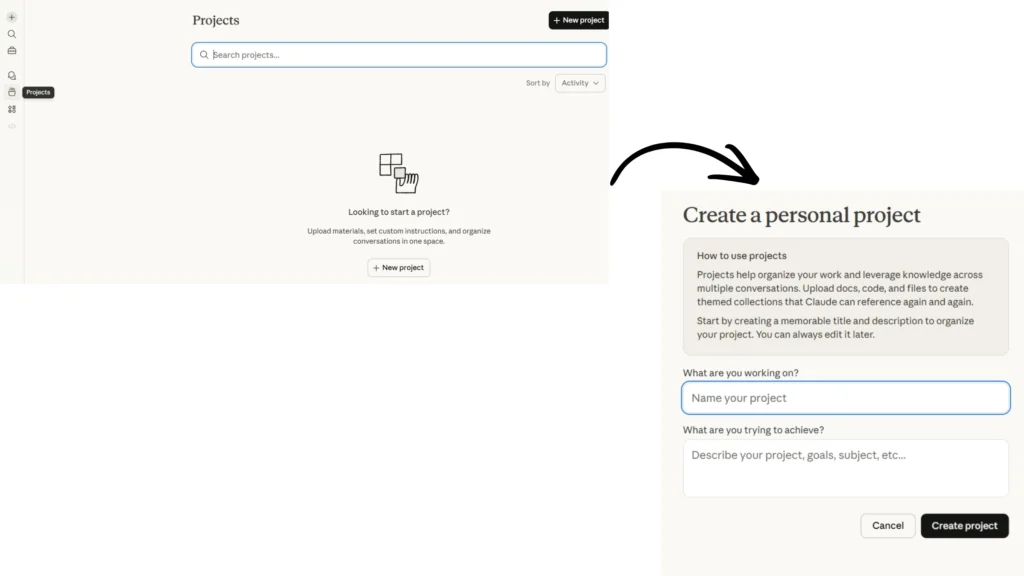
- For your own sake, create a separate project for every major area of your life: one for your primary job responsibilities, a second for your side project and a third for your own personal research. Use names that are specific and related to their context; for example, “Q2 Marketing Campaigns” instead of generic descriptions like “Work stuff.”
- Writing down the specific instructions for each Project will define the assignment. Include the specific information related to the content area about the tech stack, architecture style, testing framework (for a developer’s project) and any patterns you want to enforce (for a writing project).
- Upload all your reference documents – style guides, codebases, brand guidelines, product specifications, API documentation. Claude can accept many different types of document formats including PDF, DOCX, CSV, TXT, HTML etc. And each document can be a maximum size of 30MB; unlimited downloads per file for all paid accounts.
- Every conversation within that specific Project has access to all available above documents and conversations, so you can open a new chat in that specific Project, and Claude is already fully prepared to complete the task; there is no cold start on an ongoing conversation continuing from a previous conversation.
How does Claude’s memory actually work?
Claude’s memory function has significantly changed from the beginning of 2026. Claude now provides all users with a full memory capacity (including free users). Here are some highlights of how it operates:
- Chat Memory (available to everyone) is a feature that enables Claude to automatically catalog preferences, context, and facts encountered during the course of a conversation with you and can utilize those records when you have conversations with him in the future.
- To view the contents of Claude’s memory, undo any settings you want him to omit from, or prompt Claude to “incorporate this into his memory” (e.g., “remember I prefer short, bullet-point style of answers”), go to Settings → Memory. The process is fully automated, and Claude performs the memory functions automatically.
- Projects (active memory) are the files you upload and retain, which provide structural materials Claude accesses when he performs a task. Projects are a form of active memory and should not be reset. Memory is not developed through project work. When utilizing both forms of memory simultaneously, Claude will rarely begin from an empty slate when performing a task.
Hidden feature
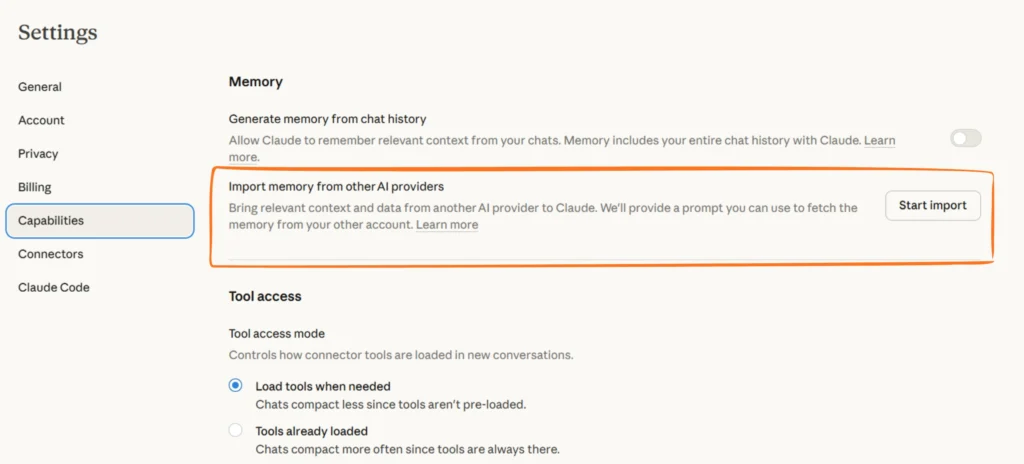
You can import your memory from ChatGPT, Gemini, and Grok directly into Claude at Settings → Capabilities → Memory Import. If you’ve built up months of preferences in another AI, you don’t have to start over.
What’s the best way to prompt Claude for better results?
Prompt quality is the single biggest variable in Claude’s output quality. Here’s what actually works:
The Anatomy of a Great Claude Prompt
Every high-quality prompt has most of these five elements.
| Element | What it means | Example |
| Role | Tell Claude who it is in this task | “You are a senior product manager at a B2B SaaS company…” |
| Context | Give relevant background | “I’m preparing a pitch for a Series A round targeting enterprise clients…” |
| Task | State exactly what you want done | “Write a one-page executive summary of our product differentiators…” |
| Format | Specify the output structure | “Use three sections: Problem, Solution, Evidence. Keep it under 300 words.” |
| Constraints | What to avoid, tone rules, audience | “Avoid jargon, write for a non-technical CFO audience, active voice only.” |
Now, to be real you don’t need to put these 5 elements for each question you have. For complex tasks to get the best results combining all the 5 elements will do wonders.
When should you turn on Extended Thinking mode?
Extended Thinking is a mode that Claude uses to defer answering a question until it has gone through a mental process of working through the problem with multiple steps including mapping out the problem itself, considering various different angles of the problem, and verifying or challenging any assumptions made about the problem before delivering an answer.
It’s available via the model selector in claude.ai (look for the “Extended thinking” toggle).
Now, the best case scenarios of using extended thinking would be in complex logical reasoning, strategic planning with many variables, competitive analysis or decision frameworks. It’s not advisable to use extended thinking for simple tasks like writing an email.
How do I get Claude to match my writing style exactly?
Claude provides access to all sorts of pre-set or custom communication styles via the Styles functionality for either open and consistent communication or unconventional in your own style.
Customized style in this instance is particularly appealing. You can plug in writing samples of your best written pieces; e.g. an article, some emails, or even a great post on LinkedIn and then Claude is able to understand your voice (what words you prefer), how your sentences are made up, and how your words have a particular cadence, and then utilizes that information to create the same style with anything else it creates for you from that point forward.
1) Click on the Styles portion at the top of conversation (or within the project settings).
2) From there, click on “Create a style” and then paste 3–5 sample pieces of your writer’s work.
3) Lastly, you provide it a name and save it, this allows you to create multiple custom styles and switch between them during the same conversation.
4) By default, all writing pieces created from within that conversation will be written in your voice.
This type of use is typically utilized by professionals who require a consistent voice across medium like: ghostwriting, content creation, advertising copy, email templates, etc. The time saved on the editing process compared to what you would normally need to do because the first draft already sounds like your voice.
What Claude features do most users not know about?
| Hidden feature | What it does | How to find it |
|---|---|---|
| Deep Research mode Pro+ | Claude plans its own search strategy, runs multiple search rounds, cross-verifies information, and produces a full report with citations. Far beyond a single web search. | Model menu → Deep Research |
| Image analysis with screenshots | Upload a screenshot of any website, app, document, or chart and ask Claude for analysis, conversion rate suggestions, or debugging help. No description needed. | Paperclip icon → upload image |
| Interactive Visualizer | Claude creates rich inline visualizations- interactive charts, animated diagrams, calculators that render directly in the chat window without leaving to another tool. | Just ask: “visualize this as an interactive chart” or “draw me a diagram of this flow” |
| Memory import | Migrate your personalized memories from ChatGPT, Gemini, or Grok directly into Claude so you don’t start from zero. | Settings → Capabilities → Memory Import |
| Project memory isolation | Each Project has completely isolated memory. What Claude learns in your “Work” project stays separate from your “Personal” project- perfect for confidentiality. | Automatic — just use separate Projects |
| Incognito conversations | Conversations in Incognito mode are never used for model training, never stored in memory, and never accessible after the session ends. | New chat → enable Incognito |
| Claude in Chrome extension | Claude becomes a browsing agent, you can ask it to navigate pages, extract data, fill forms, and interact with websites while you watch. | Chrome Web Store → Claude in Chrome |
| File creation + download | Claude can generate actual .docx, .pptx, .xlsx, and PDF files that you can download directly — not just formatted text, but real files. | Ask: “Create a Word document with…” or “Build me a presentation deck” |
Which Claude model should you use for what?
| Model | Best for | Speed | Cost tier |
|---|---|---|---|
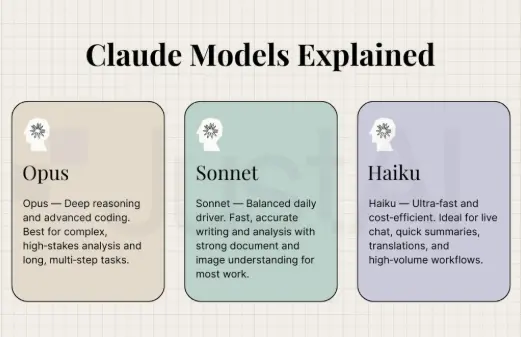
| Claude Opus 4.6 | Complex reasoning, deep research, high-stakes analysis, nuanced writing, difficult coding problems | Slower | Highest |
| Claude Sonnet 4.6 | Everyday professional tasks- coding, writing, research, content creation. The best balance of intelligence and speed. Default for most use cases. | Fast | Mid |
| Claude Haiku 4.5 | High-volume, repetitive tasks where speed matters most -classification, simple rewrites, quick Q&A, formatting tasks | Fastest | Lowest |
Wrapping it up
The gap between casual Claude users and power users comes down to setup time. Staying updated on new Claude features ensures you’re always using the most efficient tools available. Furthermore, the time needed to configure user preferences, establish 2-3 Projects with relevant instructions/documents, and build a custom writing style can be completed within 30 mins. Once the setup is complete, all subsequent conversations starting from there will be at much higher quality than the previous ones. Completing your setup only needs to happen once, and once completed, you will receive unlimited benefit from your setup while using Claude.
Let me know which one of the Claude tips and tricks was something you didn’t know up until now.
